
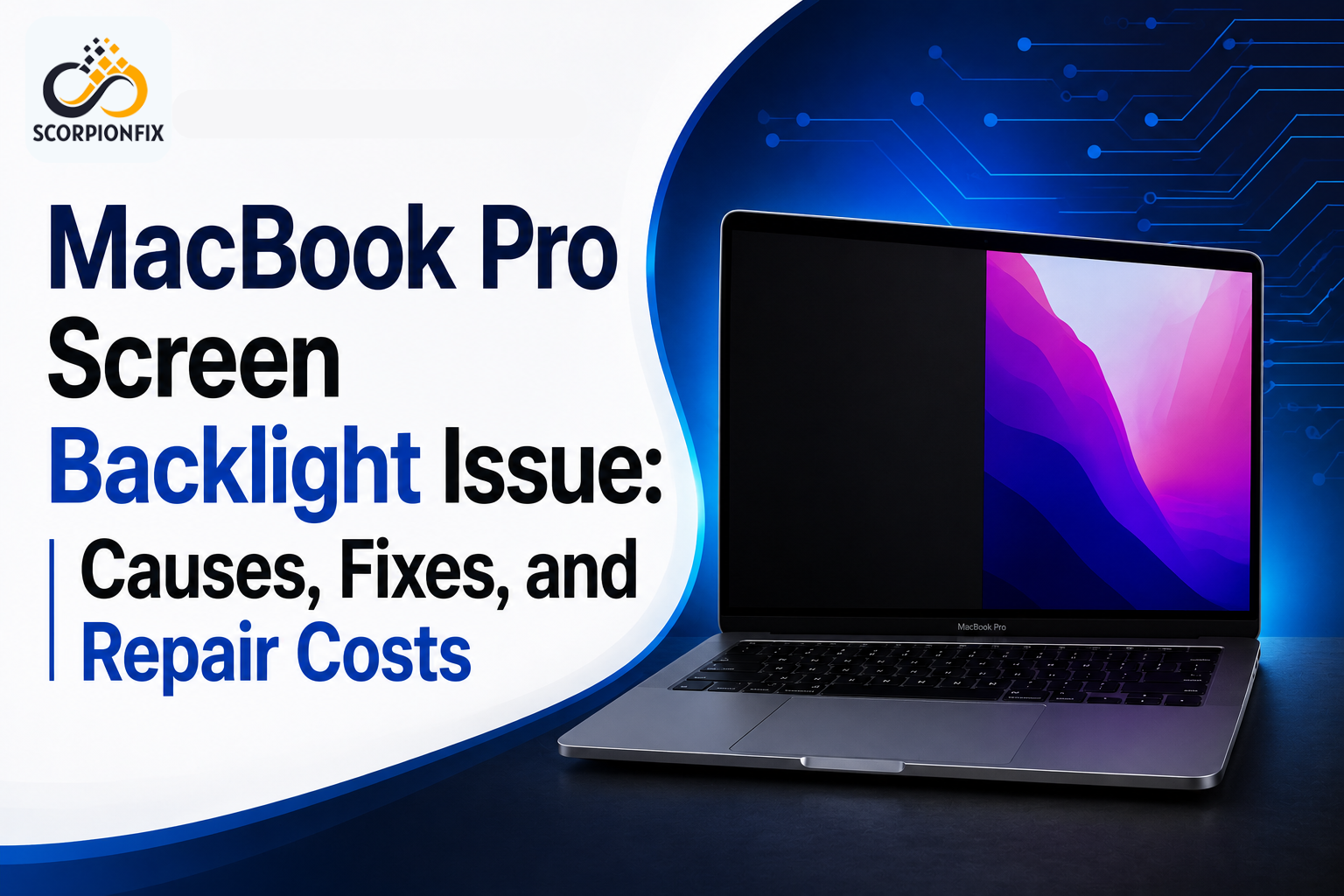
MacBook Pro Screen Backlight Issue: Causes, Fixes, and Repair Costs
Your MacBook Pro screen backlight issue is turned on, but the screen looks black or very dim. You may still hear the fan, see the keyboard lights, or hear notification sounds. If this happens, the problem could be related to the screen backlight rather than the MacBook itself being completely dead.
If your MacBook Pro screen backlight is not working, it may be due to a damaged display cable, backlight failure, logic board issues, or internal component damage. Heat, dust, and regular wear may also affect display components over time.
In this guide, we’ll explain the common causes of MacBook Pro backlight problems, simple checks you can try, available repair options, and estimated repair costs.
How to Confirm If It’s a Backlight Issue in My MacBook
Before assuming your MacBook screen has failed, perform these simple checks to identify whether it’s a backlight problem. It takes just 30 seconds.
- Check the Caps Lock Key
Turn on your MacBook and press the Caps Lock key. If the Caps Lock indicator light turns on and off, your MacBook is running, but the screen may not be displaying properly. This is often a sign that the issue is related to the display or backlight rather than the entire device.
- Check for the Apple Logo During Restart
Restart your MacBook and check if the Apple logo appears on the screen. If the screen stays black, shine a flashlight on the display. If you can faintly see the Apple logo, the issue is likely with the MacBook’s backlight. If you cannot see the Apple logo, the problem may be with another hardware component and requires further diagnosis.
What Causes a MacBook Pro Screen Backlight Problem?
- Software or Power Settings (h3)
Start with the simplest explanations. Brightness could be set to zero, Low Power Mode can dim the display more aggressively than expected, and a display sleep setting can occasionally misbehave. These are free to check and rule out before assuming hardware.
- A Worn or Damaged Backlight Flex Cable (Flexgate)
On several 2016–2017 13″ MacBook Pro models, Apple used a backlight cable that was slightly too short for how far the lid opens and closes. Over thousands of open/close cycles, the cable frays at the flex point, causing symptoms that get worse in stages. First, a flickering backlight, then a “stage light” effect (a bright band across the bottom of an otherwise dim screen), and eventually no backlight at all. This is well documented by repair specialists, including Fixxo, which coined the term “Flexgate” for it, and by Apple, which ran an extended repair program for some affected units.
- Dust and Grit Ingress
This is the mechanism behind “Grit-Gate,” and it’s especially relevant in Qatar. Fine dust and sand particles can work their way into the hinge area over time, gradually abrading the cable’s protective coating in the same spot where it flexes with every lid movement. A MacBook that spends a lot of time in a dusty environment or is opened and closed frequently is more exposed to this than the same model used in a cleaner, more humidity-controlled setting.
- A Faulty Backlight Circuit or Capacitor on the Logic Board
Less commonly, the fault is on the logic board itself. The display backlight needs a higher voltage than the rest of the board runs on, so a small boost circuit steps the power up (roughly from 12V to the 50V+ range LED backlight strips need). If a capacitor in that circuit fails, the backlight won’t get proper power even though the rest of the Mac works normally, a logic-board-level repair, not a cable or screen swap.
How to Fix Your MacBook Pro Screen Backlight Not Working (Step-by-Step)
Work through these in order, and each one rules something out before you move to the next.
- Increase brightness using F1/F2 or Control Center, and turn off Low Power Mode if it’s on. The fastest possible fix if it turns out to be a setting
- Force restart. Hold the power button for about 10 seconds until the Mac shuts off completely, then press it again
- Reset SMC and NVRAM. SMC (System Management Controller) governs power and hardware behaviour; NVRAM stores certain low-level settings, including some display parameters. On Intel MacBook Pros, reset the SMC by shutting down, then holding Shift + Control + Option + Power for about 7 seconds. Reset NVRAM by holding Option + Command + P + R at startup for about 20 seconds. Apple Silicon MacBook Pros (M1/M2/M3 and newer) don’t use these manual resets, a full shutdown and restart achieves the same effect, since these Macs manage that state automatically
- Test with an external monitor. Connect via USB-C/Thunderbolt and check System Settings → Displays → Detect Displays. If the external display works normally, the fault is isolated to the internal panel, cable, or backlight circuit, not the graphics processor or the rest of the logic board
If the flashlight test still shows a faint image after all four steps, that confirms a hardware fault. There’s no further safe DIY step from here.
Can You Fix a MacBook Pro Screen Backlight Issue Yourself?
Honestly, not recommended, and not because of a scare tactic. On modern MacBook Pros, the backlight is bonded directly into a sealed display assembly. The cable and the panel aren’t separable or swappable parts, the way they might be on an older, more modular laptop. Attempting to open the display yourself risks cracking the glass, damaging the delicate flex connector at the logic board, or introducing dust into a sealed unit, which can then cause new problems.
MacBook Pro Screen Backlight Repair Cost: What Affects the Price
Repair cost for this issue varies more than people expect, and here’s why.
- Model and year – Older Intel MacBook Pros sometimes allow a cable-only repair, which is cheaper. Newer M-series models have the backlight fused into the display assembly, so most repairs become a full display replacement. This is why online cost estimates vary so widely.
- Cable-only fix vs. full assembly replacement – Caught early (flickering stage), a cable replacement is far cheaper than replacing the entire screen.
- OEM vs. aftermarket parts – Genuine Apple-spec parts typically cost more than aftermarket equivalents, but tend to match brightness and colour accuracy more closely.
Because pricing depends so heavily on these factors, the only way to get an accurate number for your specific MacBook Pro is a proper diagnosis rather than a generic quote. ScorpionFix’s MacBook repair service in Doha can identify exactly which of the causes above applies to your Mac and quote accordingly, rather than assuming the most expensive fix by default.
FAQs
| Why is my MacBook Pro screen black, but the keyboard lights up? This is the classic sign that the Mac itself is fully powered. It’s the backlight that failed, not the whole system. Run the flashlight test to confirm the display panel is still showing an image underneath the darkness. |
| Can a MacBook Pro screen backlight problem fix itself? A software-related dimming issue can resolve itself after a restart or a settings change. A worn cable or failed capacitor won’t self-correct. If any symptoms like flickering tend to get gradually worse over time rather than better. |
| Is a dim MacBook Pro screen covered under Apple warranty? It depends on your model, its age, and whether it falls under an active AppleCare plan or Apple’s Flexgate repair program. Check your model and warranty status on Apple’s support site before assuming it’s out of coverage. |
| How long does a MacBook Pro backlight repair take? A cable-only repair, when the model allows it, can often be done same-day. A full display assembly replacement usually depends on part availability and may take longer if the specific panel needs to be sourced. |
| Does a backlight issue mean I’ll lose my data? No. A backlight fault affects only the display, and your data is stored on the internal storage and is unaffected by screen or cable repairs, as long as the repair is handled carefully. |
Conclusion
Most MacBook Pro screen backlight issues are either a quick settings fix or a genuine hardware fault, and the flashlight test is the fastest way to know which one you’re dealing with in under a minute. If it confirms a hardware issue, the next right step is a proper diagnosis rather than guessing at parts or assuming the worst-case cost. ScorpionFix offers exactly that diagnosis locally in Doha and across Qatar, so you know precisely what’s wrong and what it’ll cost before committing to a repair.
Contact ScorpionFix now https://scorpionfixqa.com
Diagnosed by ScorpionFix technicians in Doha.

Post Comment